
Two word libraries
Run two independent sets — say, one per site section or client — and switch between them right in the editor sidebar.
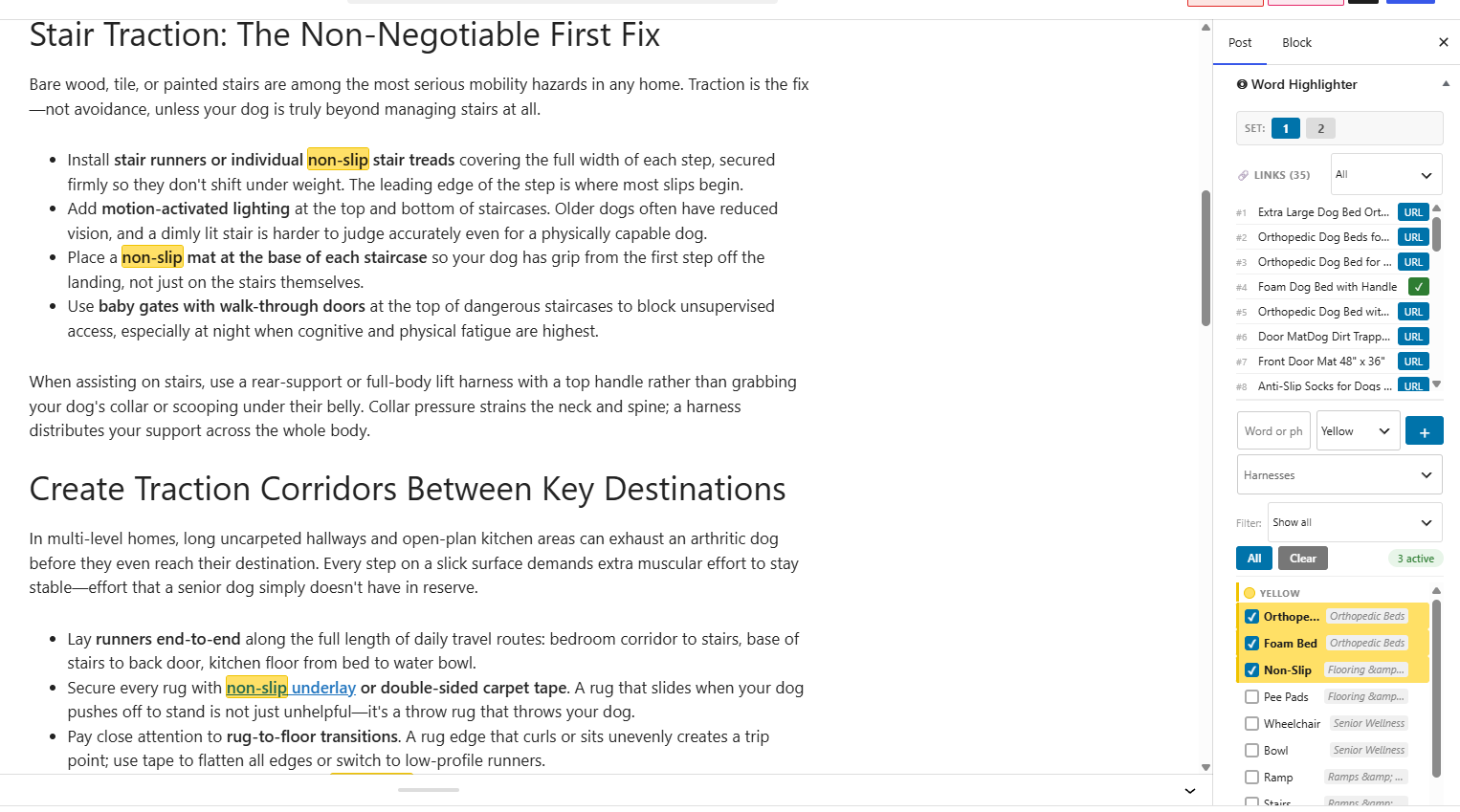
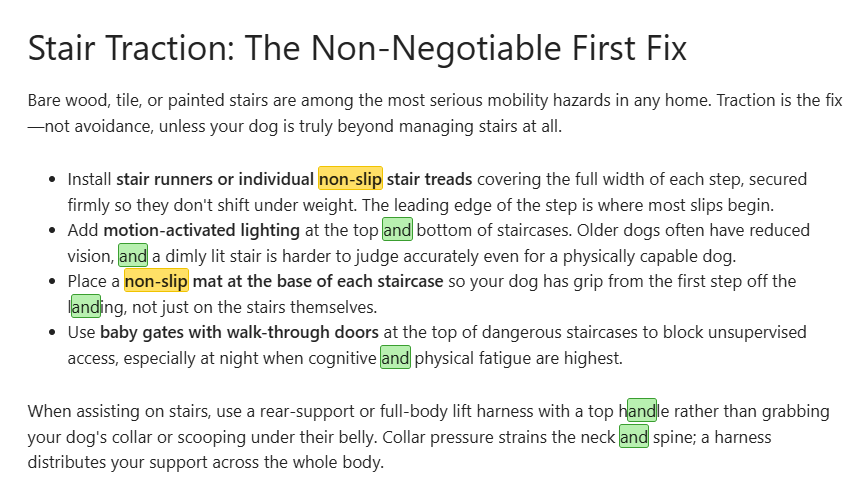
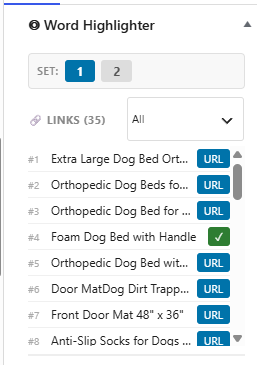
Save the words and links you reuse often — Amazon and affiliate links especially — then spot them highlighted wherever they appear in a post and drop in the right link in a click.
We tested the Wireless Earbuds X against the Noise-Canceling Headphones Y — and why the Budget Earbuds Z is worth skipping.
Two libraries, five colors, and bulk tools — built for sites with more affiliate and Amazon links than a single list can hold.
Run two independent sets — say, one per site section or client — and switch between them right in the editor sidebar.
A second reference list of links, so two different projects or categories don't have to share one long list.
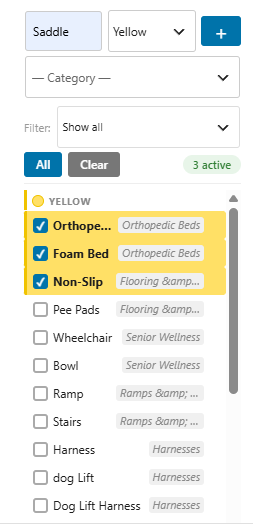
Yellow, green, red, blue, and orange — enough categories for a real workflow, not just "linked" vs "not linked."
Bring an existing glossary in, or move your libraries between sites, in a couple of clicks.
Flip between Set 1 and Set 2 directly from the sidebar panel while writing — no trip to Settings required.
Check the live post as a reader would, then flip highlights back on to confirm every mention is linked before you publish.
Get started in 3 simple steps.
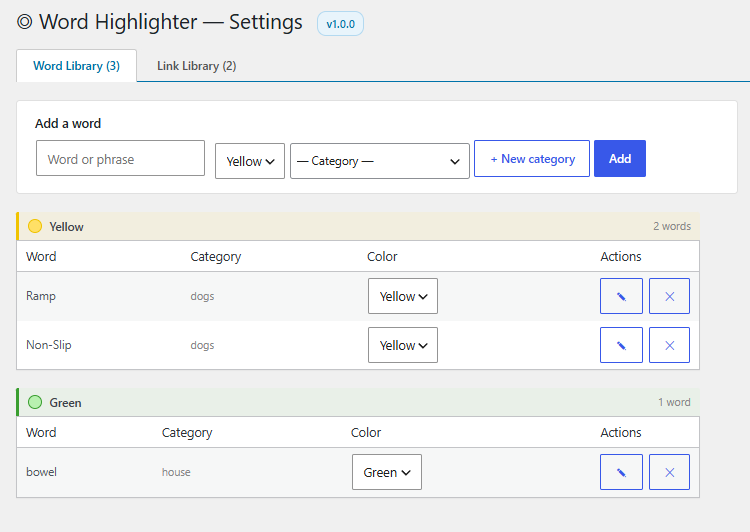
Word libraries: go to Settings → Word Highlighter → Word Library to add words or phrases to Set 1 or Set 2. Optionally assign a category and one of five colors.
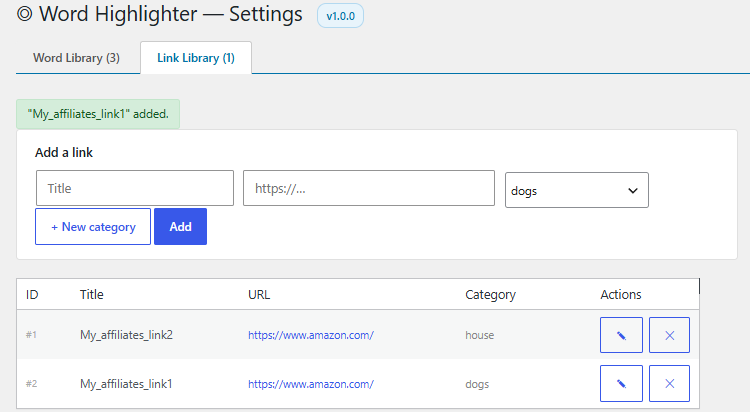
Link libraries: go to the Link Library tab to add reference URLs to either set. Optionally assign a category.
Your libraries appear in the sidebar of any post or page. Check a word to highlight every occurrence of it in the post.
Add new words or filter the list down to one category, right from that same sidebar panel.
Click any link's URL button in the sidebar panel to copy it straight to your clipboard.
For that part we built a separate tool. Give it a keyword and it returns a finished draft — headings, meta description, internal links — ready to paste into WordPress. Then Word Highlighter does what it does best.
Swipe or use the arrows.
| Feature | Free | Pro |
|---|---|---|
| Word libraries | 1 | 2 |
| Link libraries | 1 | 2 |
| Highlight colors | 2 | 5 |
| CSV word import/export | — | ✓ |
| Bulk CSV link import | — | ✓ |
| Library set switcher in editor | — | ✓ |
| Per-post word selection | ✓ | ✓ |
| Frontend toggle | ✓ | ✓ |
| Category tags | ✓ | ✓ |
Requires the free BrightApp Word Highlighter plugin installed and active — Pro is an add-on, not a replacement.
Unlock Pro Don't have the free plugin yet? Get it hereSite administrators edit word and link libraries under Settings → Word Highlighter. Editors can still enable highlights per post from the sidebar panel.
No. In the editor they're drawn as overlays. On the frontend, marks appear only for logged-in users who can edit posts, and are never saved into the post.
No — it doesn't auto-insert anchor tags. It highlights the words you've flagged and keeps your links in a quick-reference library, so finding the right URL and adding it yourself takes seconds instead of a search.
Not automatically — it won't add disclosure text for you. Many sites use one highlight color as a visual reminder to check disclosure and link freshness before publishing.
Yes — Pro is an add-on that requires the free BrightApp Word Highlighter plugin installed and active. It adds the second library, extra colors, and CSV tools on top of it.
Checkout is handled securely through PayPal. Your payment details are never seen or stored by us directly.
Yes — your purchase includes plugin updates and email support for as long as your license is active.
Email [email protected] for Pro support, or use the WordPress.org support forum for free-plugin questions.
Get Pro and set up your second word and link library in the next five minutes.
Unlock Pro